DocsGetting started
Set up your Box
Take your Box from the shipping box to your first chat at http://box.local: plug it in, join its setup Wi-Fi, choose your password and connect it to your home Wi-Fi.
Get your Box from the shipping box to your first chat at http://box.local.
What you need
- Your Box, its power cable and a power outlet.
- Your home Wi-Fi name and password.
- A phone, tablet or laptop.
- Optional: a network cable to your router, instead of Wi-Fi.
The sticker on your Box has the address, the factory password and a QR code that joins the setup Wi-Fi.
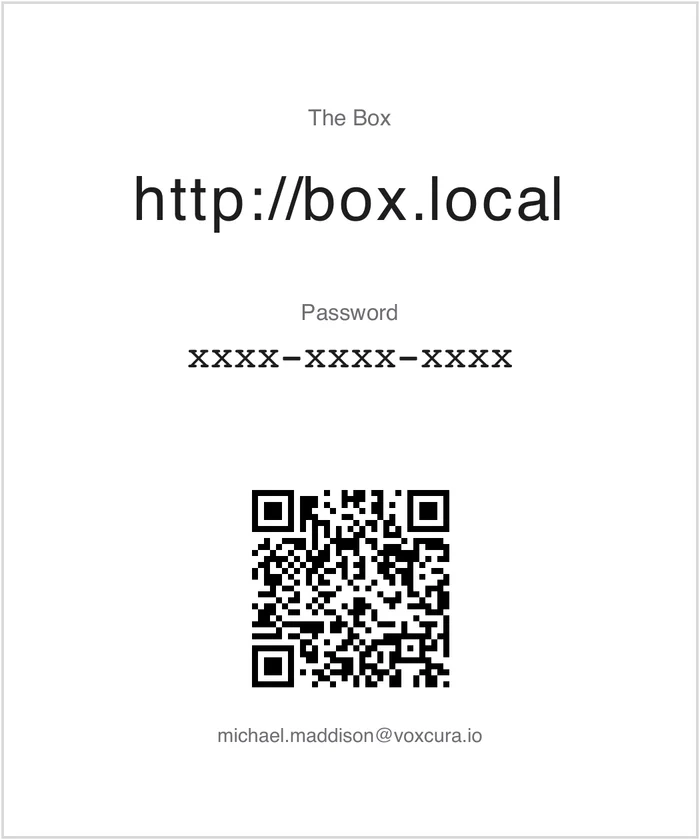
Step 1: Plug in your Box
- Plug the Box into power.
- Optional: connect a network cable from the Box to your router.
- Wait until box-setup appears in your device's Wi-Fi list.
Step 2: Join the box-setup Wi-Fi
- Scan the sticker's QR code with your phone camera and tap to join. Or choose box-setup in your Wi-Fi settings (no password).
- If the setup page doesn't open by itself, open http://box.local in your browser.
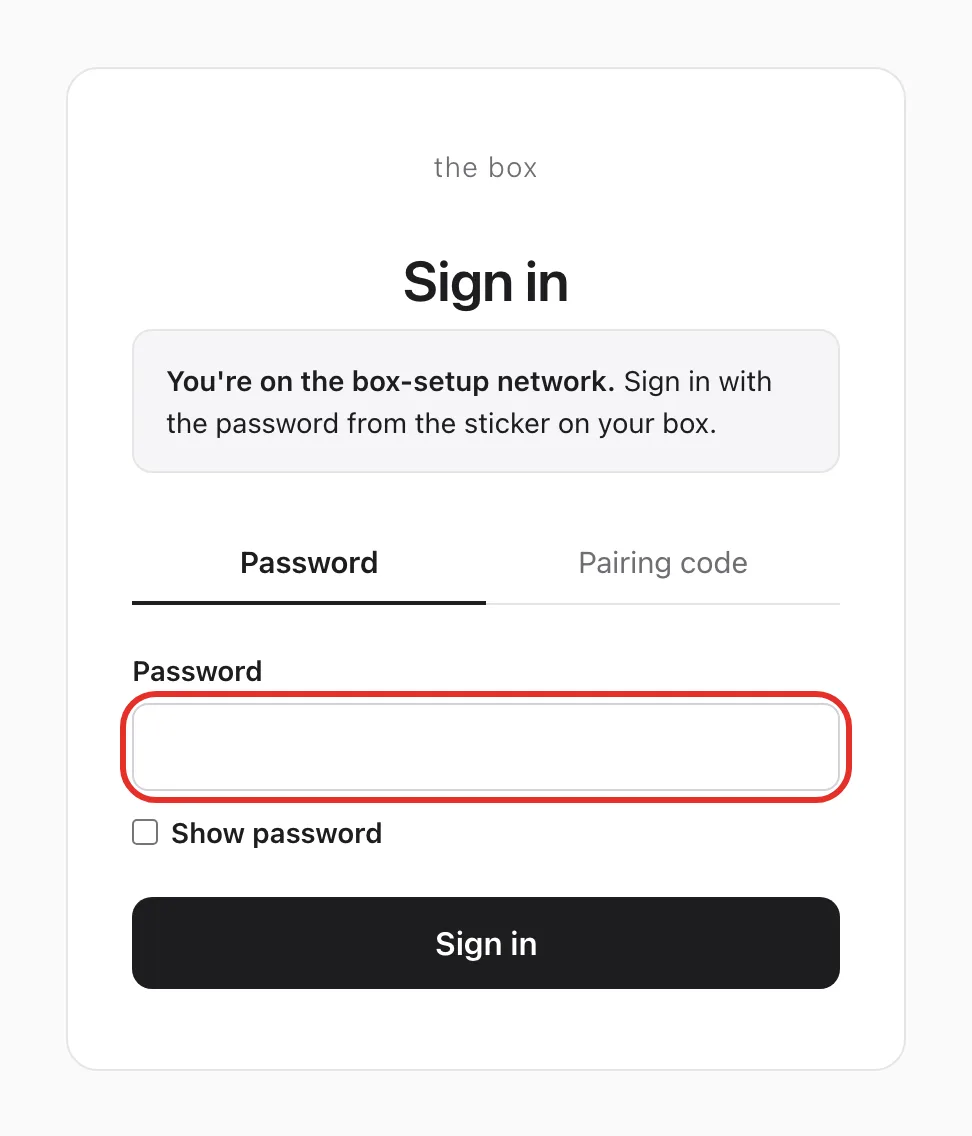
Step 3: Sign in with the factory password
- Type the password from the sticker in Password.
- Tap Sign in.
Step 4: Choose your own password
- In Current password, type the sticker password again.
- In New password and Confirm new password, type a new password of at least 12 characters.
- Tick I agree to the Terms of Use and Privacy Policy.
- Tap Save and continue.
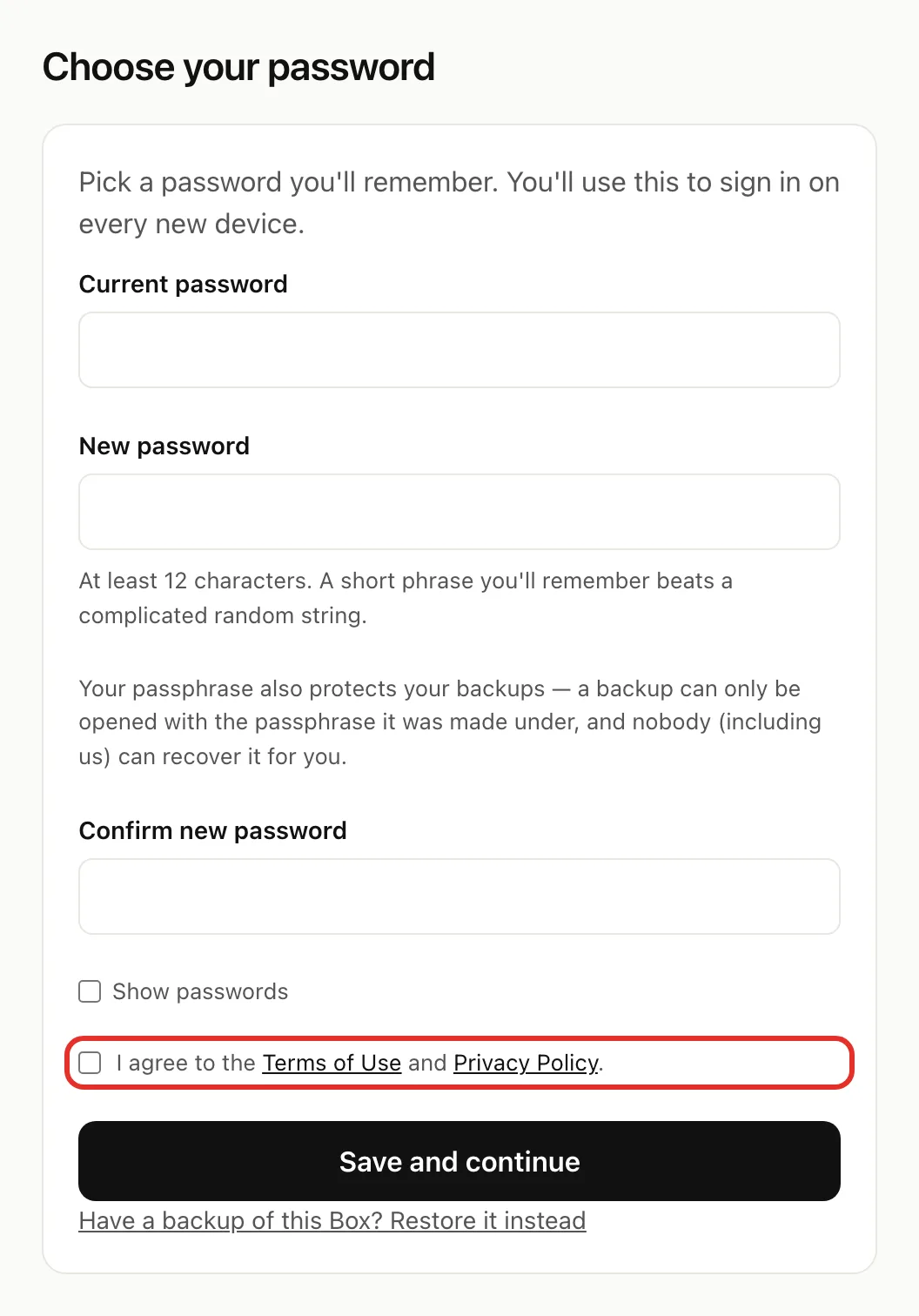
Restoring after a reset? Tap Restore from my backup (shown when a backup drive is plugged in) or Have a backup of this Box? Restore it instead. See Back up and restore.
Step 5: Connect your Box to your home Wi-Fi
- Tap Network and choose your home Wi-Fi. Not listed? Choose Other (type it in).
- Type your Wi-Fi password in Password.
- Tap Connect.
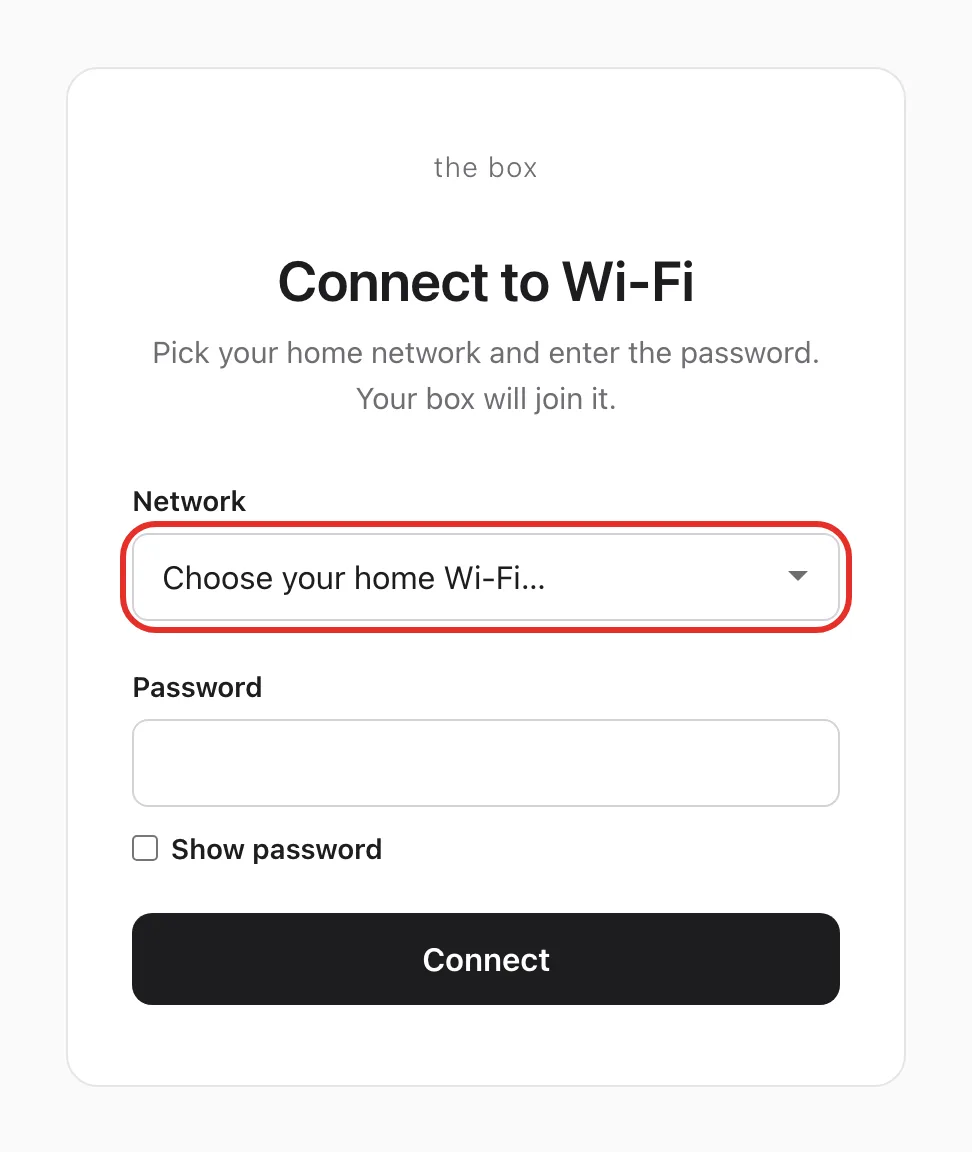
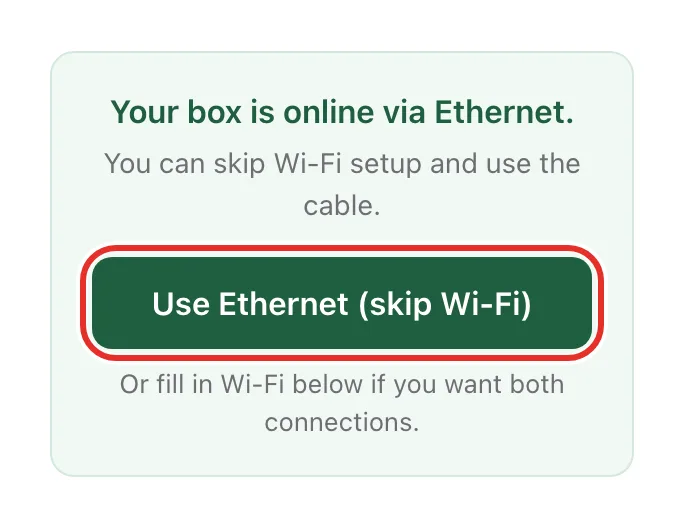
Using a network cable? Tap Use Ethernet (skip Wi-Fi) instead, then go to Step 6.
Step 6: Switch back to your home Wi-Fi
The Box turns off box-setup, so your device drops off it.
- Join your home Wi-Fi on your device.
- Open http://box.local.
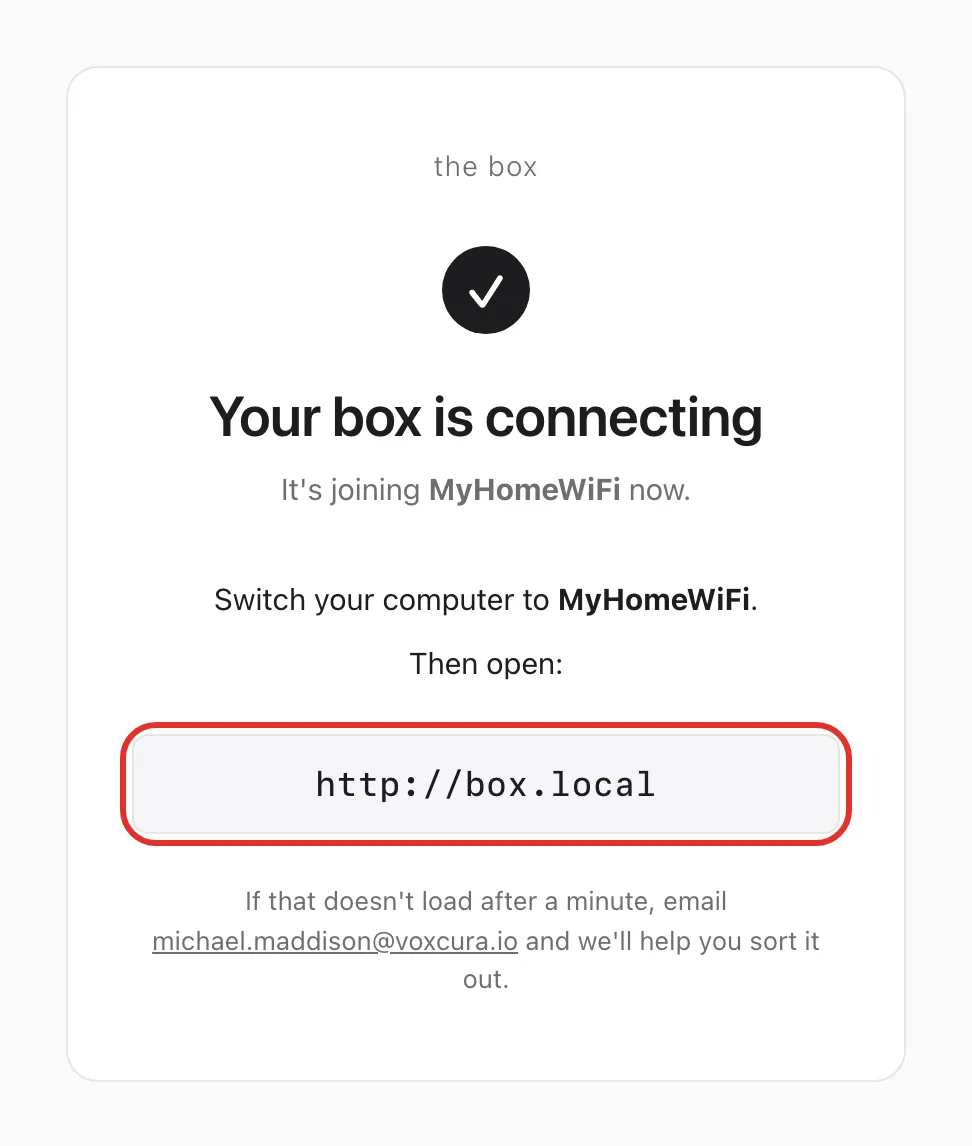
Already on your home network? Nothing to switch. The page opens http://box.local for you.
Step 7: Start chatting
Type your first message in Message Hermes... and send it. See Chat with your Box.
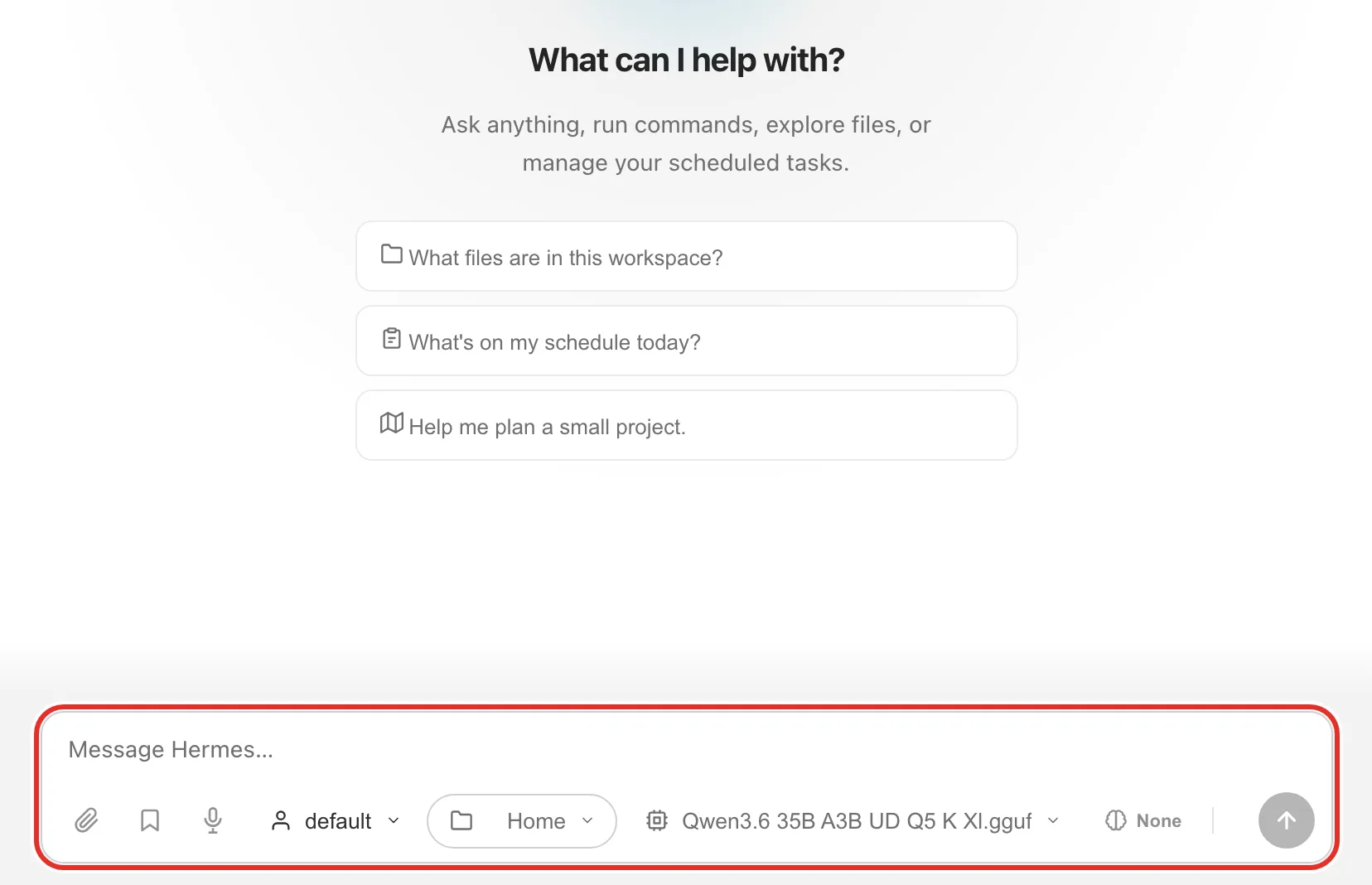
On any other device at home, open http://box.local and sign in with your new password.
If something goes wrong
- box.local doesn't load after a minute: the Box may not have joined your Wi-Fi (often a mistyped password). It turns box-setup back on. Join it, open http://box.local, sign in with your new password and try again.
- Still stuck: email michael.maddison@voxcura.io.
Next steps
Verified on Box software source · 2026-10-05