DocsKeep it running
Change your password
Change the password you use to sign in to your Box, and what to do if you have forgotten it.
Set a new sign-in password for your Box. You need your current password and a device that is already signed in (Sign in and add devices).
Change your password
- Go to box.local.
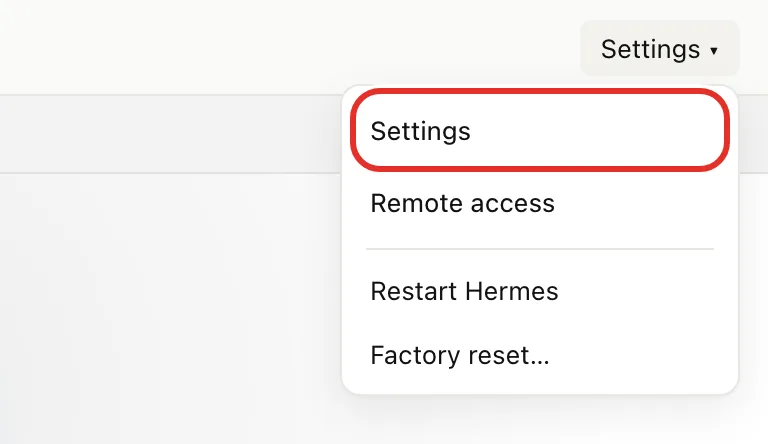
- Tap Settings at the top right, then Settings in the menu.
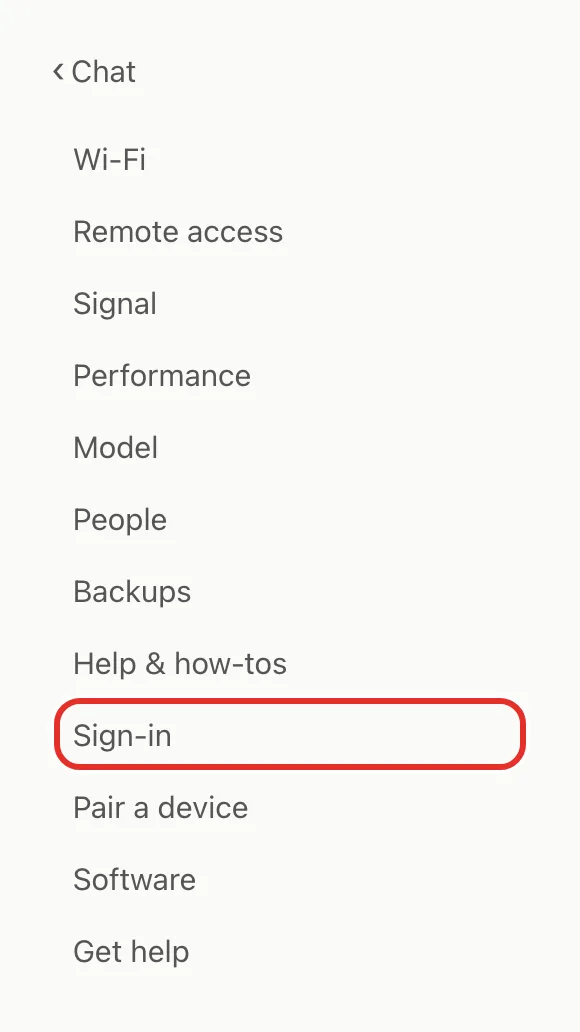
- Tap Sign-in in the settings list. On a phone, the list is at the top.
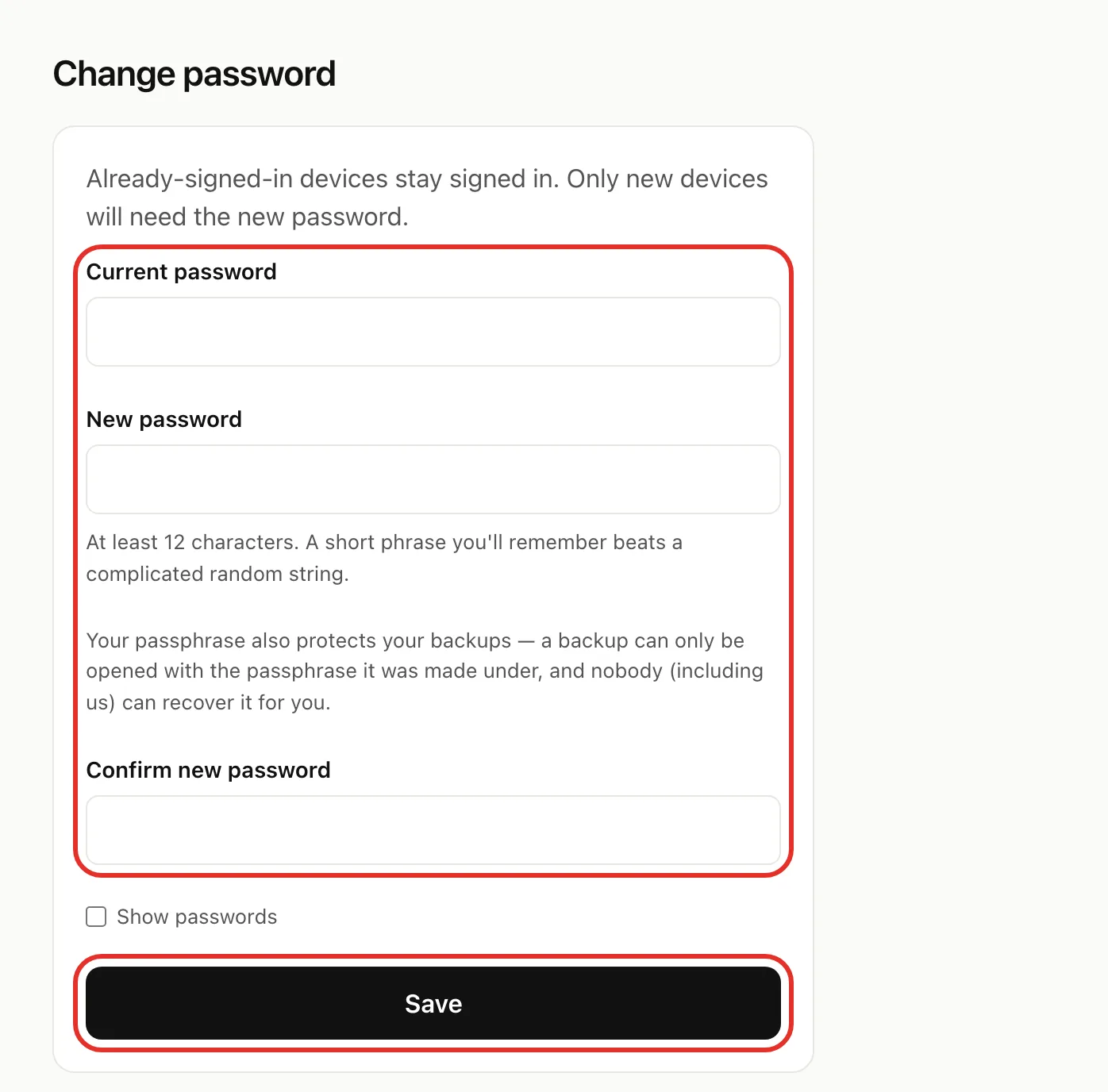
- Type your Current password.
- Type a New password of at least 12 characters, then type it again in Confirm new password.
- Tap Save.
The Box returns you to the chat page. Devices already signed in stay signed in; new devices need the new password.
If something goes wrong
The Box stays on Change password and shows a message above the fields:
- Current password isn't right. Retype the password you sign in with now.
- New password and confirmation don't match. Retype both. Tick Show passwords to compare them.
- New password must be at least 12 characters. Choose a longer one. A short phrase works well.
- New password must be different from the current one. Choose a different password.
- Forgot your password, but a device is still signed in. Keep using that device. To add another device, use Settings, then Pair a device (Sign in and add devices).
- Forgot your password and need to change it, or no device is signed in. Email michael.maddison@voxcura.io.
More help: Get help.
Verified on Box software 0.2.8 · 2026-10-05